
The Tool That's Saving Me From Explaining the Same Thing Five Times: Tango AI

Okay, this one's for anyone who's ever had to show someone how to do something. A coworker, a client, a new hire, an intern, your mom trying to use the banking app you set up for her, it doesn't matter. If you've ever explained the same process more than once, you need to see this.
It's called Tango.ai, and it's a browser extension that watches what you're doing on your screen, captures every step, and automatically turns it into a how-to guide.
The timing could not be more perfect, because my team is growing right now. I'm bringing on a new employee, and I really want to do this the right way from the beginning, because hiring someone is exciting, but training them can turn into a full-time job if you don't have systems in place.
This has happened to me before: I'll take the time to explain something, and then they ask me how to do it again. Or I forget to mention one important step. Three weeks later, I can't even remember how I originally explained it.
And as a working mom of two, I already have enough tabs open in my head. I don't want my team's entire training process living in my memory. So I've been testing Tango across a few of the tools I use constantly, and I want to show you how it works, how I'm using it to train my team, and one AI use case I think is especially interesting.
Why AI Agents Need Better Workflows Too
Before I get into the Tango walkthrough, here's why this matters beyond just onboarding.
A lot of companies are building AI agents to answer internal questions or automate tasks. But after rollout, some workflows run smoothly while others break, stall, or need constant manual fixes. Usually the problem isn't the AI, it's the workflow behind it.
Most processes live inside someone's head, an outdated doc, or a Loom video nobody can find. That's a problem for new hires and AI systems, because neither one can follow a process reliably if the instructions are incomplete. AI needs clear steps, defined inputs and outputs, decision points, and updated information. An AI-ready workflow doesn't just explain what to do, it documents how the work is actually done inside the tools your team uses.
That's where Tango comes in. It captures the real workflow while you perform it: the clicks, the screenshots, the order of steps, the system-level context. You can clean it up, blur sensitive info, and export it for employee training or as part of an AI agent's knowledge base.
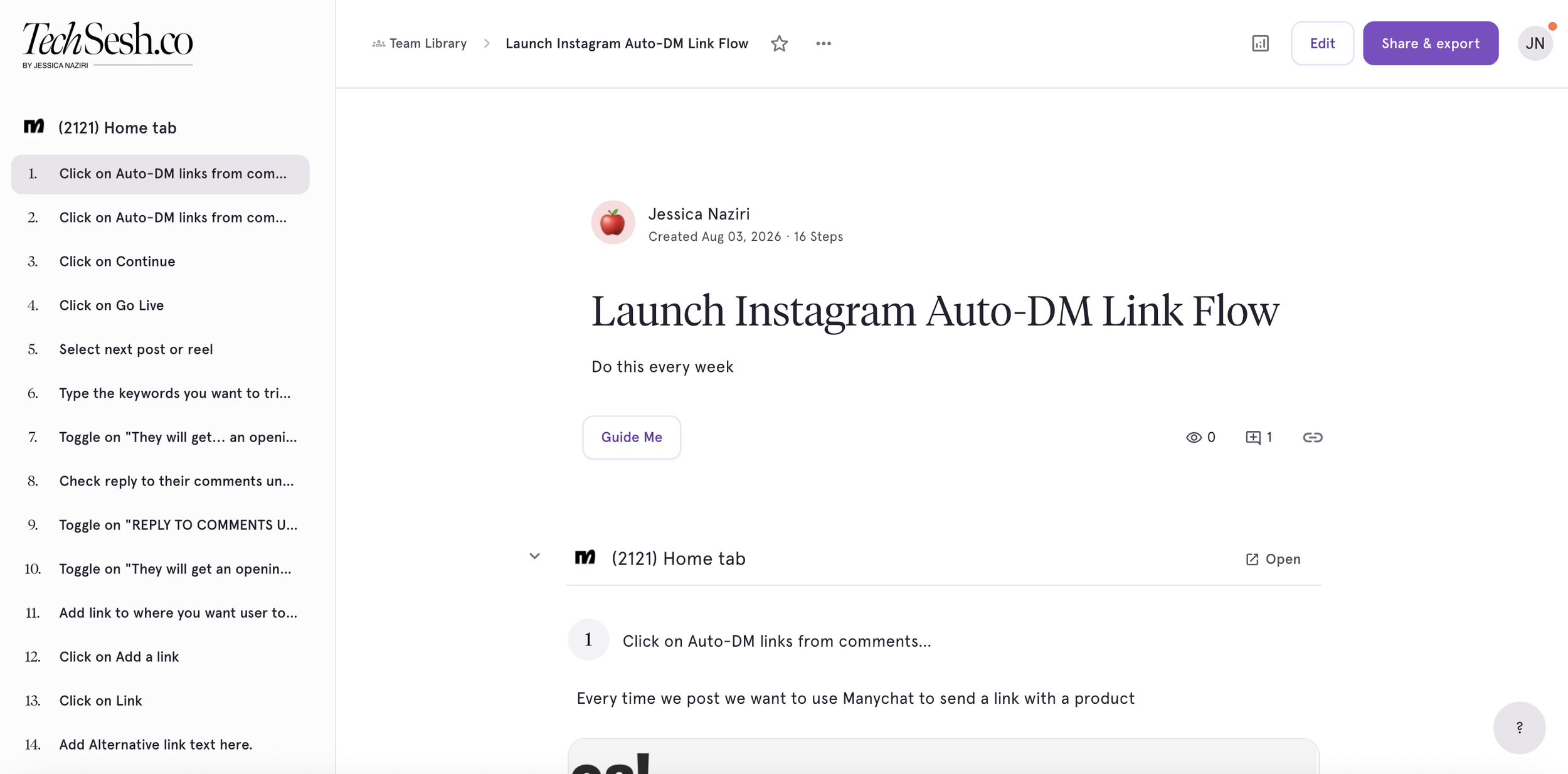
So when someone asks "How do I submit this campaign?" or "How do I build this ManyChat flow?" or "What's our process for pulling analytics?", the AI isn't guessing. It can reference the actual process your team follows.
And once the workflow is documented, you can also see which parts could be automated. For example, after my team finishes a sponsored video, someone has to rename the file, upload it, update the project tracker, notify the client, and schedule the post. Some of those steps need human judgment. Others could potentially be handled by software. That's the bigger idea: document the work, standardize it, then automate what makes sense.
Why I Actually Needed This
The hardest part about growing a team isn't always finding someone, it's getting everything out of your head and into a system they can actually follow.
When you've been doing something yourself for years, a lot of the process becomes automatic. You know where everything is, which button to click, which Google Drive folder to use, that one weird step you have to do because the platform refuses to behave normally. A new employee doesn't know any of that. You don't realize how many small decisions you're making until you try to explain the entire process out loud.
That's what I like about Tango, you don't have to stop working and write a training manual from scratch. You just do the task the way you normally would, and Tango documents it while you're doing it. I love that I can create the training guide while I'm already completing the task. That's a much better use of time, especially when you're growing a small team and don't have someone else to handle training.
I'm the training department. I'm also the boss, the IT department, the person paying invoices, and the person wondering why nobody renamed the file correctly.
A Real Example: My HubSpot AEO Workflow
Here's how it actually works. I speak on air about tech and AI on CBS, and lately I've been doing a lot of work around AEO, answer engine optimization. It's basically about helping your content show up when people ask questions inside AI tools, not just traditional Google search.
Let's say I just brought on a new employee and need them to understand how I handle part of that process inside HubSpot. This is exactly the kind of workflow that has multiple steps and is easy to mess up when you're brand new.
I open the Tango browser extension and click Start Capture. No narrating, no stopping to take screenshots, no writing instructions in a separate Google Doc, I'm just working. Click here, open this section, check this setting, add the info, review the page, submit it. Then I stop the recording.
And this is what Tango creates: it captured every click, took a screenshot for each step, placed everything in the correct order, and automatically wrote a description underneath each screenshot. I didn't type a single word of that.
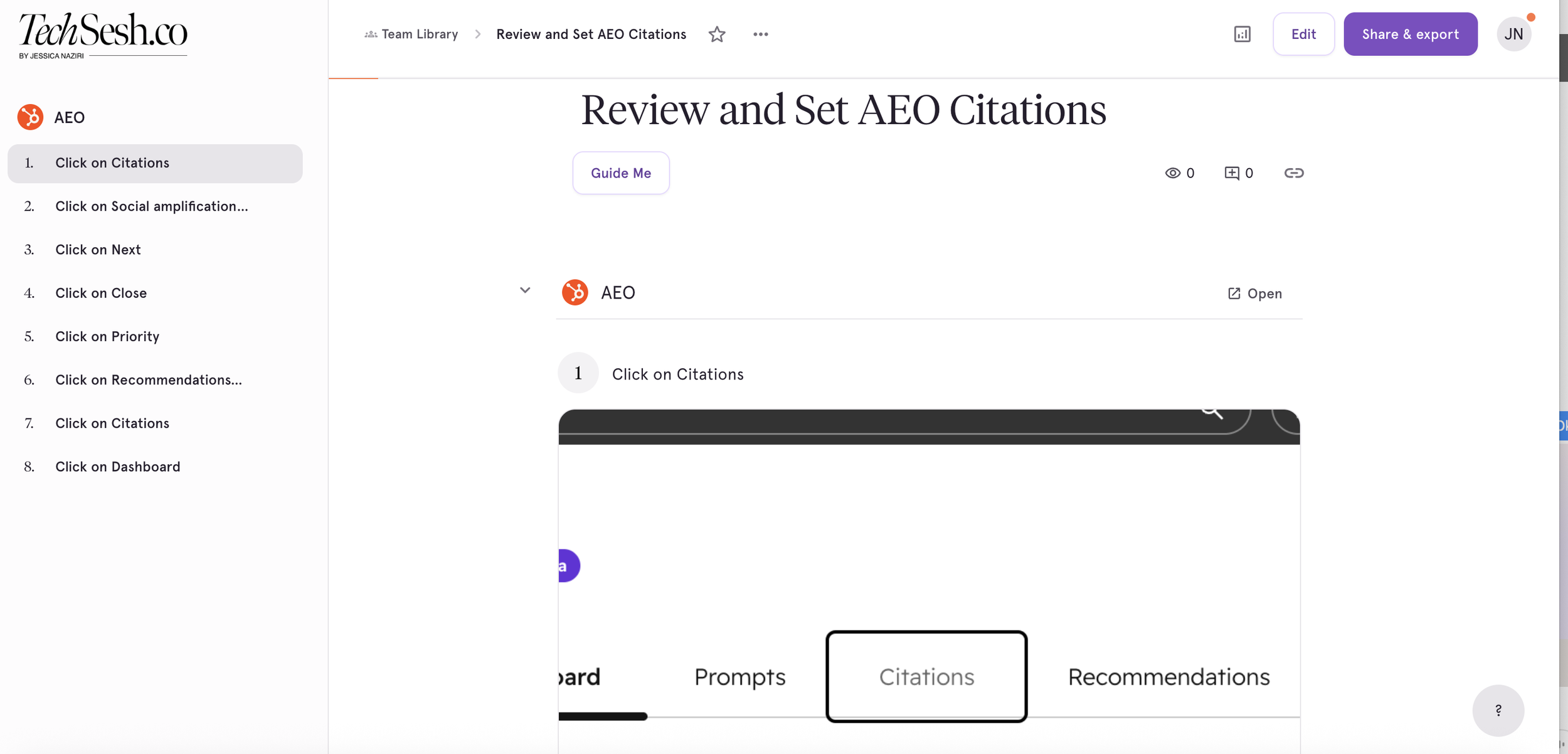
The descriptions aren't perfect, but they get surprisingly close. It's AI, not a tiny employee living inside your browser with full knowledge of your company, but it gives me a really strong first draft, and that's the part that saves time. Instead of starting with a blank page, I'm starting with a complete guide I can quickly review and edit.
This HubSpot process has enough steps that I wouldn't expect a new employee to memorize it after seeing it once. Honestly, I might not remember every step myself six months from now. So instead of saying "first go here, then open this menu, then check this setting, then go back, then click this other thing,” I just send them the guide. And because Tango captured the actual HubSpot interface, the screenshots look exactly like what the employee will see when they log in.
Editing and Privacy Features
Once the guide is created, I can edit anything, change the title, rewrite instructions, add more detail, or drop a callout on a step people tend to miss (that last one is one of my favorite features).
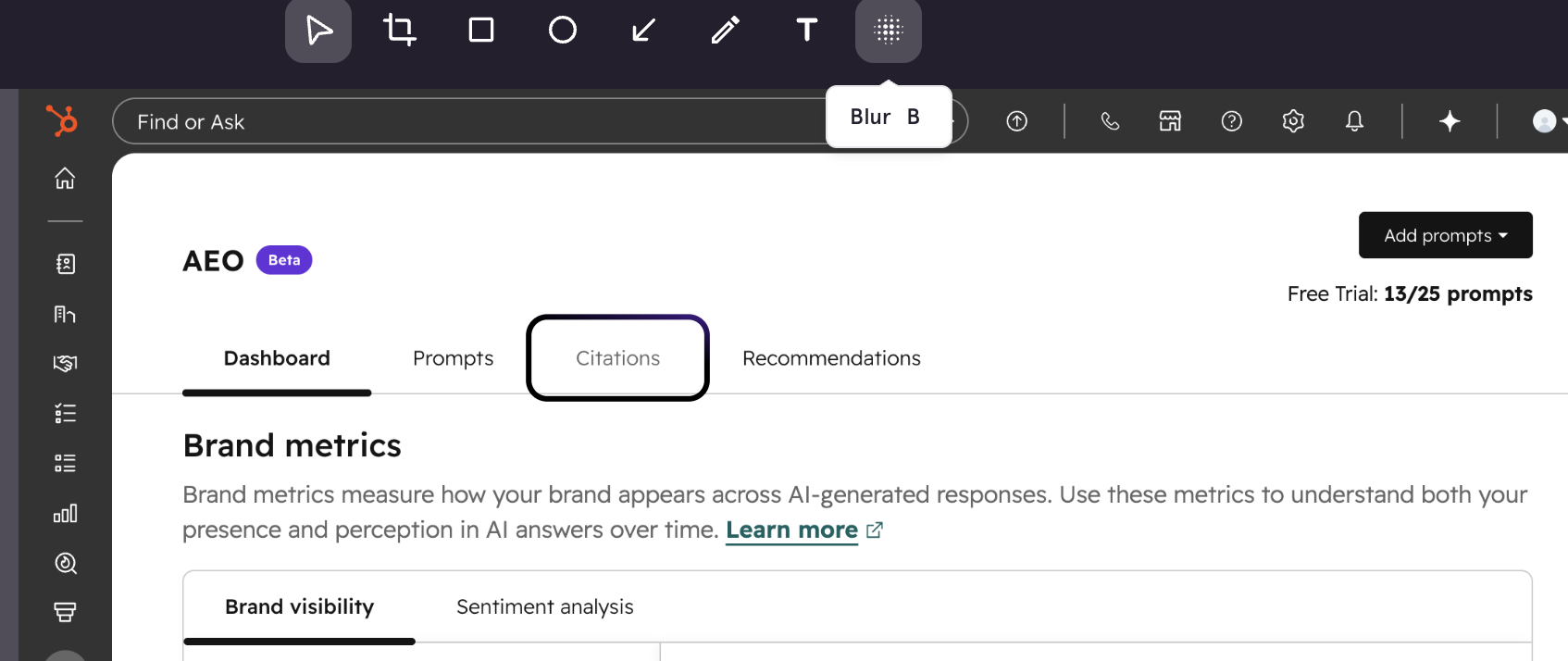
On the privacy side, if there's sensitive info in a screenshot, a client name, email address, account number, anything private, I can blur it with one click. There's also a feature that automatically detects and blurs sensitive information during the recording, which matters because when you're moving fast, it's easy to accidentally capture something you didn't mean to share, especially with client accounts, financial info, or internal dashboards.
My other favorite feature: nobody's perfect. If I mess up one step, I can re-record just that step instead of starting the entire guide over. There's nothing more annoying than getting eight minutes into a screen recording, clicking the wrong thing, and realizing the whole video is now a historical document of your mistake. Fix one part and keep moving.
Once I'm happy with a guide, I can send it as a link, embed it, or export it as a PDF, whatever works best for how my team operates.
Using Tango for Meta Business Suite
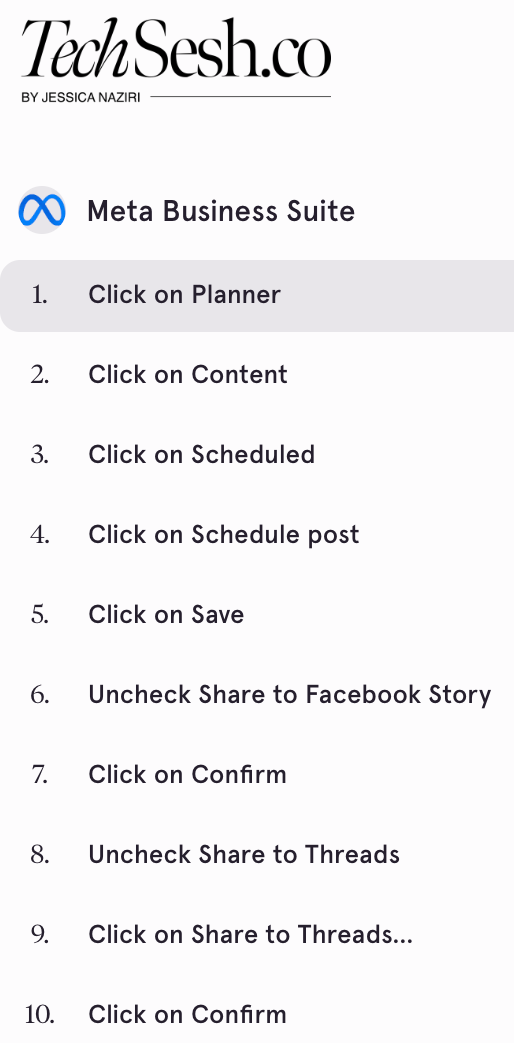
Another tool my team uses constantly is Meta Business Suite. Anyone who manages social knows Meta changes things all the time, features get renamed, a menu disappears, then it comes back somewhere else. Training someone inside Meta gets frustrating because a guide you made six months ago might already be outdated.
So when I need to teach someone how to schedule a post, check campaign performance, or pull analytics, I turn on Tango and record the process while I do it. Now I have a step-by-step guide showing the exact current version of Meta Business Suite. If Meta changes one part of the workflow later, I don't have to recreate the whole guide, I just update the step that changed. That makes it way easier to maintain. We've all sent someone an outdated doc and then acted surprised when they were confused. Tango makes keeping guides current actually manageable.
Using It for ManyChat
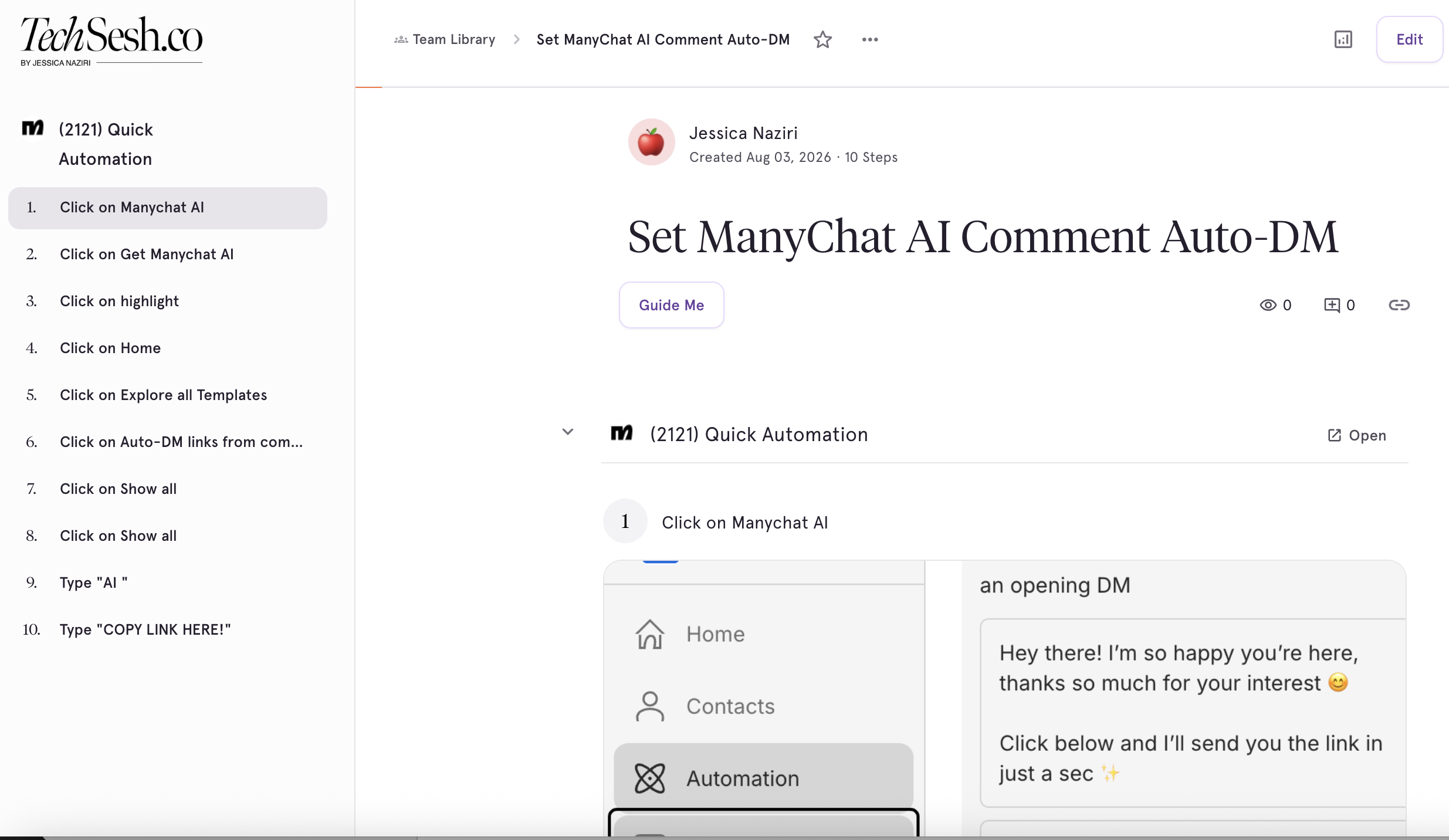
I also use tools like ManyChat to build automated messaging flows, and those flows get complicated fast, different paths depending on what someone clicks, which gets messy to explain over a call.
Instead of talking through the whole thing, I just record myself building the flow. When someone on my team needs to build something similar, they have the actual process in front of them, which trigger I selected, how I structured the messages, how I connected each part of the automation.
What I like across HubSpot, Meta Business Suite, and ManyChat is that the guide always reflects the actual platform, it's specific to the exact screen the employee is going to see. Tango also works with a much wider range of tools, including Monday, SharePoint, Microsoft tools, Salesforce, and a lot of the other platforms teams already use every day.
Guide Me: Training That Lives Inside the App
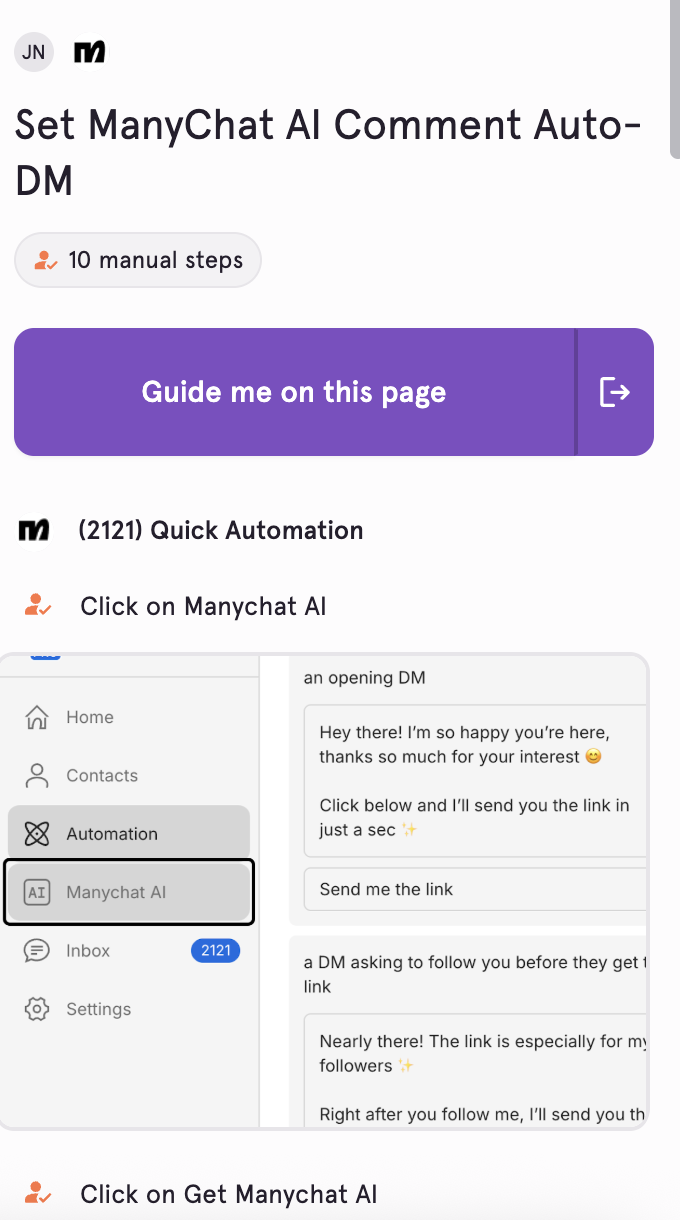
There's a feature built into Tango that's especially helpful for new employees, called Guide Me.
Normally, when someone's following a training guide, they've got the instructions open in one tab and the software open in another. Guide Me puts the instructions directly inside the app while the person is completing the process, so the employee follows the guide step by step while actually working in the software, and the instructions stay visible the whole time. They get the instruction exactly when they need it.
I think of it almost like GPS for work. For a new intern or employee, that makes the learning curve feel a lot less overwhelming. They don't have to remember everything immediately, and from my end, that helps them become independent faster.
The Real Business Payoff
The real benefit isn't just saving time once, it's creating consistency. When every employee learns a process differently, you end up with different file names, different workflows, missed steps, and a lot of unnecessary double-checking. With Tango, everyone starts from the same process. That means fewer mistakes, less back-and-forth, and less time spent fixing work after it's already done.
If a process normally takes me 30 minutes to explain on a call, and I have to explain it to three different people, that's already an hour and a half. With Tango, I document it once while I'm doing the work, and I reuse it. That's the bigger value for me, I'm not just training someone faster, I'm building a system that can actually grow with the team.
How I'm Rolling This Out With My New Team
Since I'm bringing on an intern and a new employee, I'm starting with the questions I already know they're going to ask repeatedly. Instead of trying to document my entire business at once, I'm starting with the processes that come up most often.
My intern doesn't need to see every process my full-time employee uses. My employee doesn't need access to every client workflow. Keeping training relevant to each person makes it way easier to follow.
I'm also planning to ask the team for feedback as we go. If a step is confusing, I want to know. If a guide assumes too much, I want to fix it. If they keep asking the same question, that tells me the guide, or the process itself, needs work. That's how I want to approach training: not as one giant information dump on day one, but as an evolving system they can keep coming back to.
My Honest Take
The auto-generated descriptions are good, but I still go in and tweak them so they sound like me. And if a workflow has a lot of decision points, you may need to add extra context, Tango captures the steps, but you still have to explain the judgment behind them. I'd also recommend reviewing every guide before sharing it, especially if it includes client info or private data.
But compared to writing a guide from scratch, taking screenshots manually, or recording a long video nobody ends up watching, this is so much faster.
The Bottom Line
You go through the task like normal, Tango captures the steps, and it turns the whole thing into a guide you can edit, share, and eventually use for AI agents or automation.
For me, this is about growing my team without becoming the person who has to answer every question, every single time. I want clear systems, better training, and less information living only in my head. Tango isn't just about creating instructions, it's about turning the knowledge in my head into a system my team, and eventually AI, can actually use.
Tango is free to try. I'll drop the link below. Let me know in the comments which process you're tired of explaining over and over. 👇
Try Tango here. For a full breakdown, watch my Youtube video here.