
Childproof Your Kids iPhone: Step by Step Guide

If you’re planning on giving your kid an iPhone, or if they already have one, make sure you change these settings to keep them safe. Below is a step by step guide on exactly how to make their phone safer in minutes.
Step by Step Guide
This one section of Settings is the literal parental control center:
Settings → Screen Time → Content & Privacy Restrictions.
Most parents don’t know how powerful this menu actually is.
1. Turn On Content & Privacy Restrictions
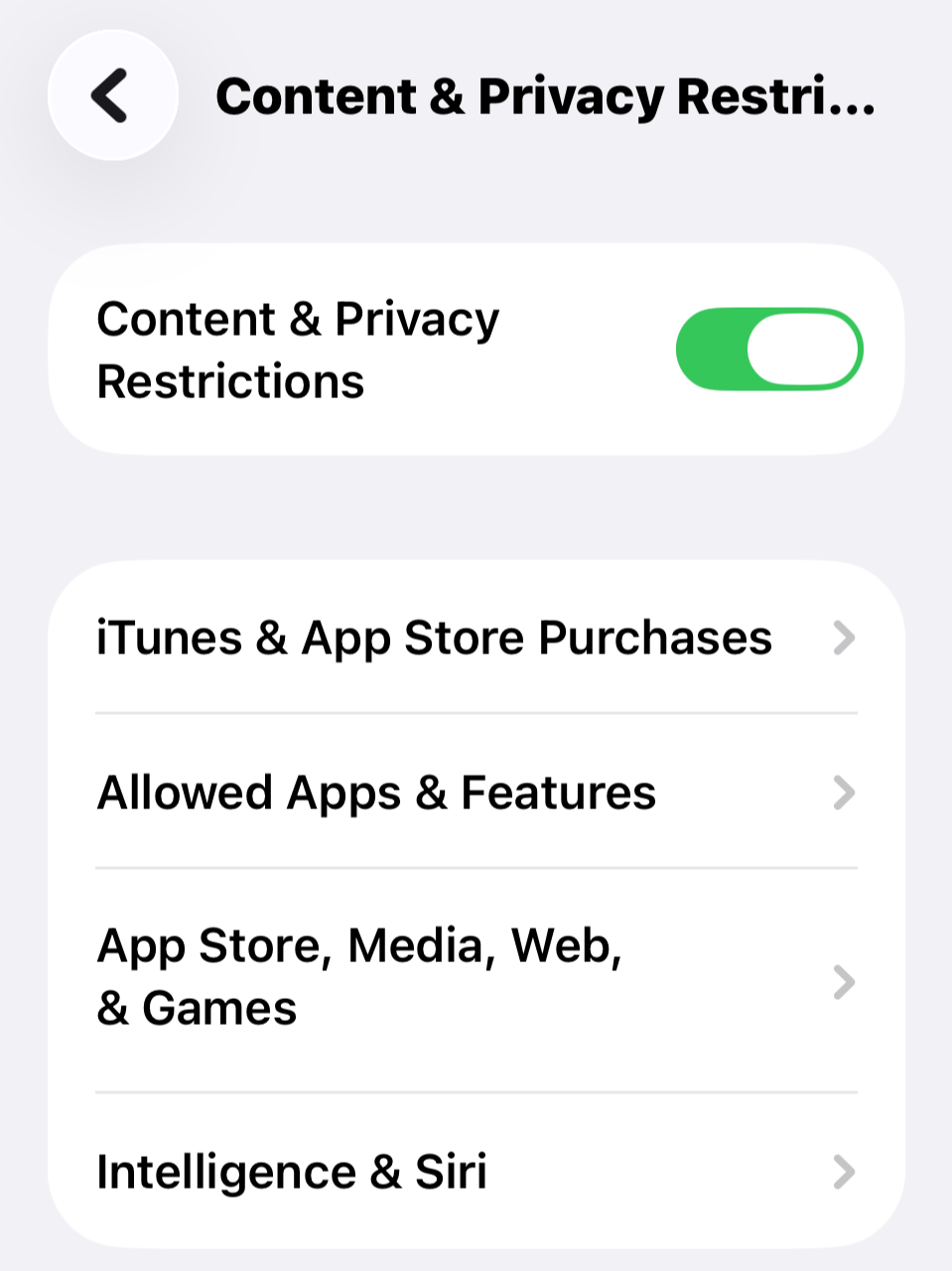
Start here:
Settings → Screen Time → Content & Privacy Restrictions → Toggle ON
This single switch unlocks all of Apple’s built-in parental controls. Think of it as the literal “master key” to managing the device.
2. Block Unauthorized App Downloads and Purchases
Inside iTunes & App Store Purchases, you can stop kids from:
Installing apps
Deleting apps
Making in-app purchases
You decide what requires your Screen Time passcode — not theirs.
This alone prevents a ton of accidental (and not-so-accidental) downloads.
3. Hide Apps You Don’t Want Them Using
In Allowed Apps, you can disable or hide certain system apps entirely.
Popular choices for younger kids include:
Safari (hiding this eliminates web browsing completely)
Wallet
Mail
FaceTime
AirDrop
It’s an easy way to remove distractions or shut down features they’re not ready for yet.
4. Set Content Restrictions (This Is the Most Important Part)
Under Content Restrictions, you control the maturity level of almost everything they access:
Apps (age ratings)
Movies
TV shows
Music & Podcasts (clean only)
Books
Websites
Then go to Web Content and select Approved Websites Only if you want full control of what they can visit online. This creates a safe, curated internet experience.
5. Lock Down Game Center
This one is often ignored, but it matters — especially with social features built into mobile games.
Turn off:
Multiplayer games
Adding friends
Private messaging
This reduces the risk of strangers interacting with your child in gaming apps.
6. Filter Siri & Intelligence
Head to Siri & Search settings within this section and disable:
Explicit language
Web search content
This ensures Siri responses stay kid-friendly and can’t pull unexpected results.
7. Control Privacy Permissions
Under Privacy, you get to decide which apps can access:
Photos
Microphone
Location
Contacts
Bluetooth
Camera
This is crucial for keeping personal information and data locked down.
8. The Final Step: Prevent Kids From Changing the Settings
Finally, go to Allow Changes and lock down:
Passcode changes
Account changes
Cellular data settings
Volume limits
Screen Time settings
This ensures your child can’t undo any of the protections you just set.
Your Child’s iPhone Is Now Secured
Once you walk through these sections, the phone becomes significantly safer, more controlled, and a lot more kid-friendly.
It takes just a few minutes — and gives you a whole lot of peace of mind.
Follow @jessicanaziri for more!