
iPhone Hack To Stay Organized
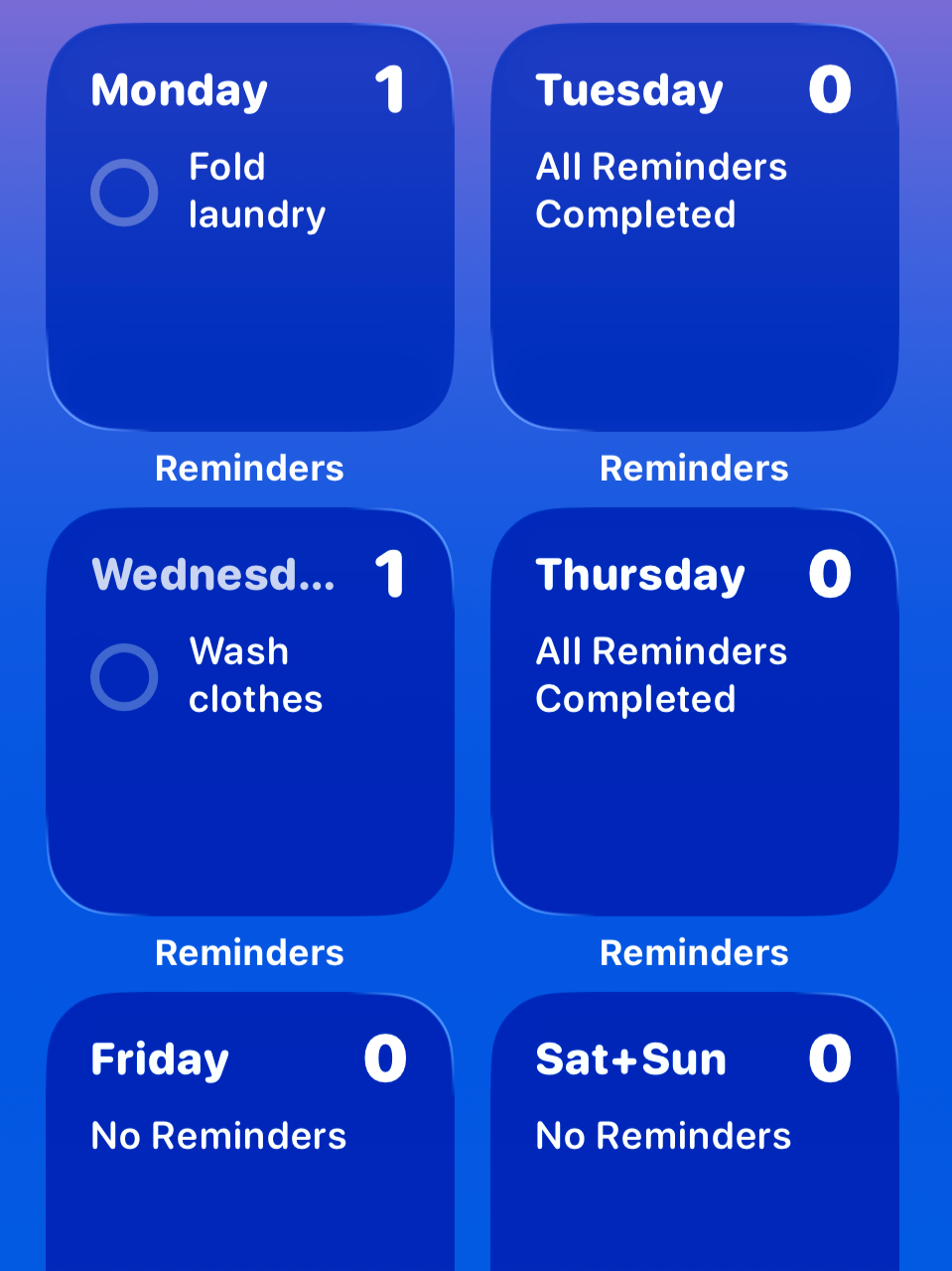
If you want a clear, visual to-do list for your entire week—right on your iPhone home screen—this setup is a game changer. No new apps, no subscriptions, just using Apple’s built-in Reminders app in a smarter way.
Here’s how to set it up in just a few minutes.
Step 1: Enter Home Screen Edit Mode
Start on your iPhone home screen. Press and hold anywhere on the screen until your apps begin to wiggle.
In the top-left corner, tap Edit, then select Add Widget.
Step 2: Add Reminders Widgets
In the widget search bar, type Reminders.
Choose the Reminders widget style you like and add it to your home screen.
You’ll want to repeat this step six times so you end up with a full page of Reminders widgets.
Why six? Apple currently limits how many widgets fit on one page, so we’ll combine Saturday and Sunday later.
Step 3: Create Daily Reminder Lists
Now open the Reminders app.
Tap the plus (+) icon in the top-right corner and select New List.
Create six separate lists and name them:
Monday
Tuesday
Wednesday
Thursday
Friday
Weekend (Saturday + Sunday)
You can customize each list with different colors to make days easier to spot at a glance.
Step 4: Assign Each Widget to a Day
Go back to your home screen with the Reminders widgets.
Tap and hold each widget, then select Edit Widget. Assign each one to a different daily list you just created.
Once that’s done, each widget will display tasks for a specific day of the week.
Step 5: Start Adding Your Daily To-Dos
That’s it. You now have a full weekly to-do list visible the moment you unlock your phone.
Add tasks directly inside the Reminders app or straight from the widgets. As you complete tasks, they disappear—keeping your home screen clean and focused.
Why This Works
You see your entire week at a glance
No switching between apps
No forgetting tasks buried in notifications
Fully customizable and free
It’s one of those small iPhone setups that quietly changes how organized your week feels.
You’re welcome.